
Shoppable Instagram posts on Shopify: how to make your feed sell
How to make Instagram posts shoppable for a Shopify store: product tags inside Instagram, and a shoppable Instagram feed on your store with add to cart.
By Zegsu team6 min read
Shoppable Instagram posts are posts with your products tagged on them, so someone looking at the photo can see the price and buy. For a Shopify store there are two places to make posts shoppable: inside Instagram, with product tags from Instagram Shopping, and on your own store, with a shoppable Instagram feed where shoppers tap a post and add the products to cart. This guide covers both, then shows how to set up the second with Zegsu Instafeed.
Two kinds of shoppable Instagram post
| Inside Instagram | On your Shopify store | |
|---|---|---|
| Who sees it | People scrolling Instagram | Visitors on your store (from Google, ads, email, Instagram bio links) |
| How you tag | In the Instagram app, from your Meta catalog | In a feed app, from your Shopify products |
| What you need | Shopify's Facebook & Instagram channel, a Facebook Page, Meta's approval | An Instagram feed app and a Business or Creator account |
| Where they buy | Your Shopify checkout | Add to cart from a popup, without leaving the page |
| What you can tag | Posts and stories, per Shopify's help | Depends on the app; Zegsu Instafeed tags posts, Reels, carousels and Stories |
Tags don't cross over. Products you tag in Instagram aren't visible to feed apps, and tags you make in a feed app don't appear on Instagram.
Making posts shoppable inside Instagram
Instagram's product tags come from Instagram Shopping. For a Shopify store, you set this up with Shopify's free Facebook & Instagram channel, which syncs your products to a Meta catalog. After your Instagram business profile is approved, Shopify's help says you can tag your products in Instagram posts and stories.
You need an Instagram professional account linked to your own published Facebook Page, a supported country, and products that can be bought on your own domain. Our guide to connecting Instagram to Shopify walks through the requirements and setup.
Making posts shoppable on your store
On your store, a shoppable Instagram feed turns each post into a small product display. With Zegsu Instafeed:
- Install and connect. Install Zegsu Instafeed from the Shopify App Store, click Connect Instagram and log in with your Business or Creator account. Your latest posts come in straight away.
- Add the feed to a page. Click Add to home page (or Product pages, Collection pages or Pages under Where it shows) and click Save in the theme editor.
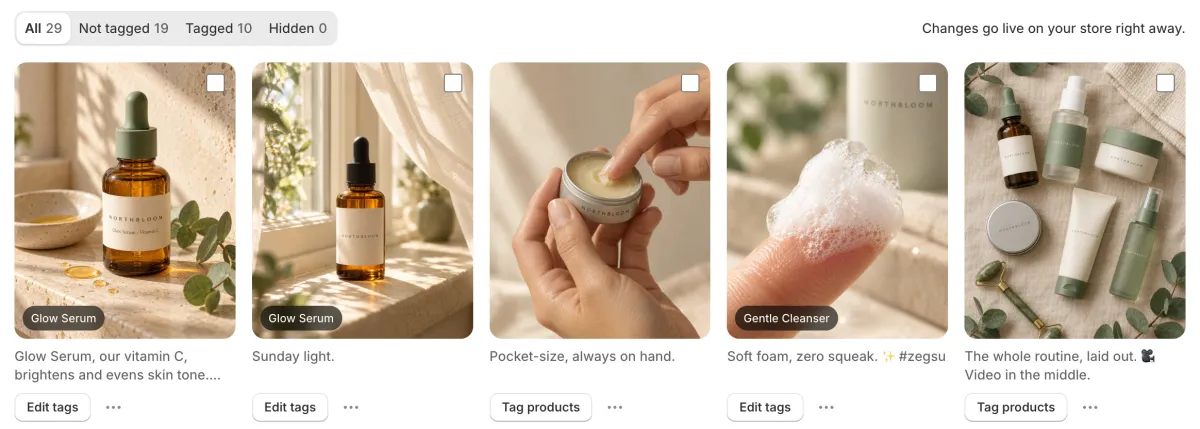
- Tag products. Open Posts. Under a post, click Tag products, tick the products in it and click Select. Changes go live on your store right away.
- Use the suggestions. When a caption names one of your products, the post shows Looks like with that product and a Tag it button, so tagging takes one click.
- Check it on your store. Open your store, click the post and add a product to cart. The cart count in your theme updates, and the cart drawer opens if your theme has one.
What shoppers see
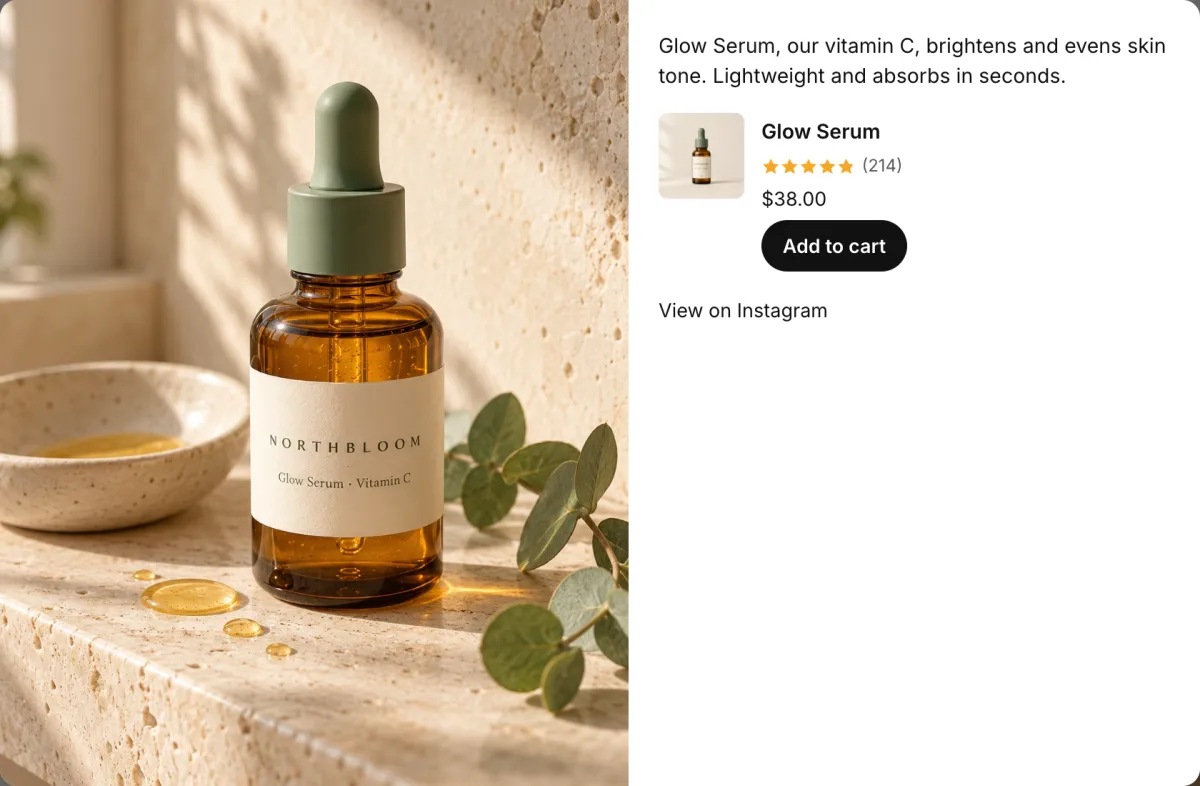
When a shopper clicks a post, a popup opens over the page with:
- the photo, the Reel (playing muted, with controls) or every slide of a carousel;
- the caption, shortened to about 40 words;
- each tagged product with its photo, title, star rating, price, a variant picker and Add to cart;
- View on Instagram, which opens the post on Instagram.
Arrows and the arrow keys move to the next post, and on phones the popup fills the screen. The help article What do shoppers see when they open a post? has screenshots of each state.
Tag faster: auto-tagging and bulk tagging
Tagging every new post by hand is the step most stores skip, and an untagged post can't sell. Two features help:
- Auto-tagging from captions (Pro). Turn on Tag products automatically in Settings, and each new post whose caption names one of your products is tagged with it as it syncs. It never changes tags you set. See how to tag new posts automatically.
- Tag many posts at once. In Posts, tick several posts and click Tag products in the bar at the top, which helps after a launch shoot. Home also lists posts whose captions match a product, with Tag all. See how to tag many posts at once.
A caption habit makes auto-tagging work: name the product the way it's named in Shopify ("Glow Serum, our vitamin C…"), rather than only "link in bio".
Show the right posts on the right product page
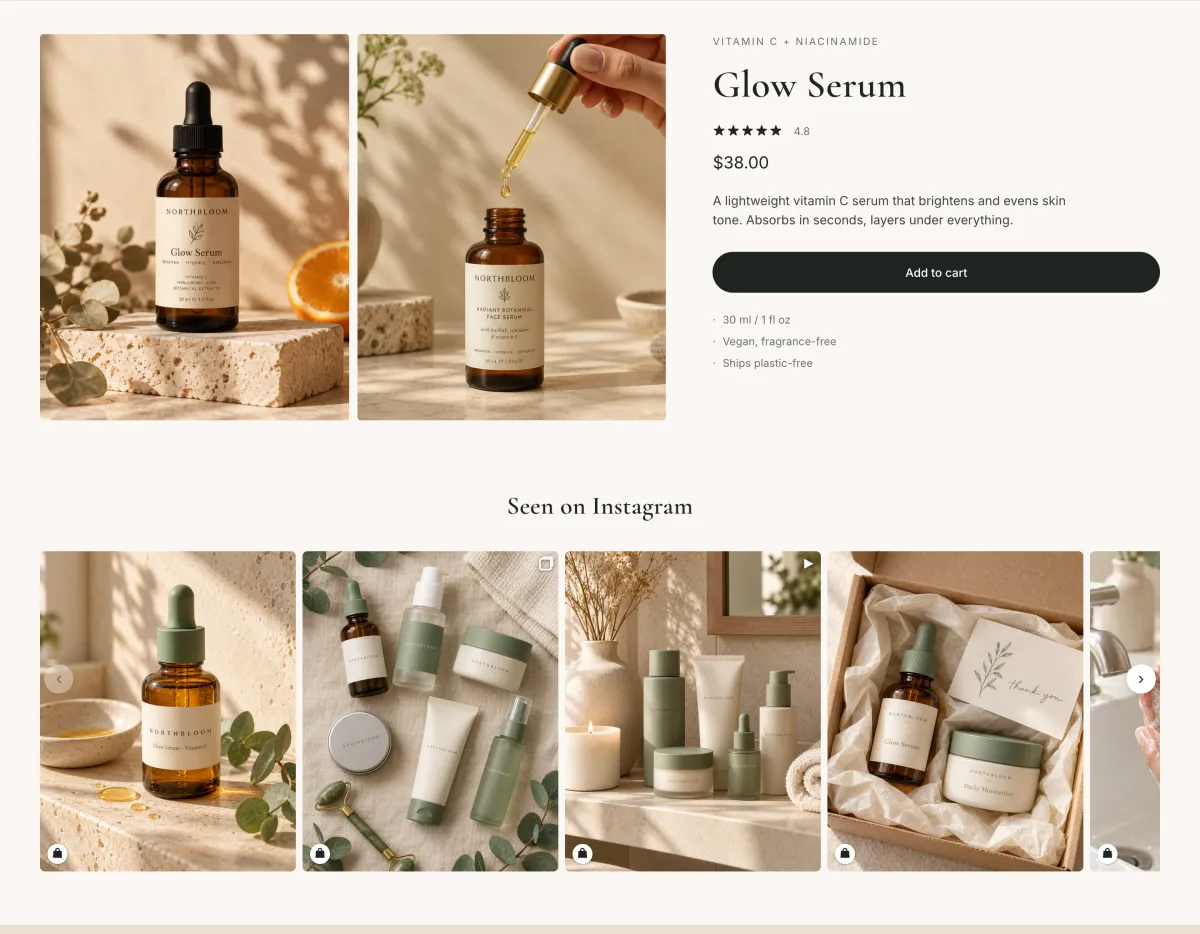
On Pro, a feed on your product pages can show only the posts tagged with that product. Turn on On product pages, only posts tagged with that product under Feeds > Which posts, and add that feed to your product page template. Products with no tagged posts show nothing, so there's no empty block. The steps are in this help article.
Reels and Stories
- Reels show in the feed on every plan and play in the popup. On Pro, they can also play in the feed, muted, while they're on screen. A Reel downloads only when it scrolls into view.
- Stories (Pro) show as circles above the feed while they're live on Instagram, with products you tag on them under Posts > Live stories. Each story leaves your store when it expires, 24 hours after you post it. See how to show Instagram stories on your store.
Examples of shoppable feed setups
| Store type | Where | Layout | What to tag |
|---|---|---|---|
| Skincare brand with a hero product | Home page and product pages | Grid on home; slider with "only this product's posts" on product pages | Each post with the one or two products shown |
| Clothing store posting outfits | A "Shop the look" page linked from the Instagram bio | Grid, 4 columns | Every item in the outfit (a post can carry as many products as you like) |
| Store posting new arrivals as Reels | Home page, under the hero | Slider or Reels row; Reels playing in the feed (Pro) | The product in the Reel; turn on auto-tagging and name it in the caption |
What it costs
Zegsu Instafeed's Free plan makes up to 6 posts shoppable, with as many products on each as you like, in one feed with grid or slider layouts. There are no view limits and no watermark. Pro ($5.99 a month or $29.99 a year) makes every post shoppable and adds auto-tagging, Stories, Reels in the feed, product-page feeds, collage and hero layouts, and up to 20 feeds. New stores start with 7 days of Pro, no card needed. See what the Free and Pro plans include.
To see which posts are working, the app's analytics show views, opens and adds to cart from your feed (7 days on Free; 30 days, per post, on Pro). Sales per post are rolling out now.
FAQ
Can I tag products on carousels? Yes. Tag the products shown anywhere in the carousel; the popup shows every slide with the tagged products beside it.
Do I need Instagram Shopping to make my feed shoppable on my store? No. Your store's feed uses your Shopify products directly. You don't need a Facebook Page or Meta's approval for it.
Can I make other people's posts shoppable, like customer photos with my hashtag? Not yet. Hashtag feeds in Zegsu Instafeed show your own posts with a hashtag. Showing public posts from other accounts needs Meta's approval, which we've applied for.
What happens to my tags if I go from Pro to Free? They stay saved. Products show on your first 6 tagged posts, and the rest show again if you go back to Pro.
Next steps
Install Zegsu Instafeed free, tag your six best-selling posts first, and add a feed to your home page. If you haven't placed a feed yet, start with our guide to adding an Instagram feed to Shopify.