
How to add an Instagram feed to Shopify (and make it shoppable)
Add an Instagram feed to your Shopify store in a few steps: connect Instagram, pick a layout, place it in the theme editor and tag products on your posts.
By Zegsu team6 min read
To add an Instagram feed to Shopify, install an Instagram feed app, connect your Instagram Business or Creator account, and place the app's feed section on a page in your theme editor. Shopify's own Facebook & Instagram channel doesn't do this: it sends your products to Instagram, not your posts to your store. This guide shows the steps with Zegsu Instafeed, what to check before you start, and how to choose a layout and placement.
What you need before you start
| You need | Why |
|---|---|
| An Instagram Business or Creator account | Instagram only lets apps read posts from professional accounts. Switching a personal account takes about a minute in Instagram's settings and doesn't change your posts or followers. |
| An Online Store 2.0 theme | The feed is added as an app section in the theme editor. Dawn, Horizon and most Theme Store themes support this; older "vintage" themes don't. |
| A few active products | Only needed if you want shoppers to buy from your posts. Draft and archived products can't be tagged. |
You don't need a Facebook Page. If your Instagram account is linked to one, you can connect through Facebook instead.
How to add an Instagram feed to your Shopify store
These steps use Zegsu Instafeed. Other Instagram feed apps work in a similar way: connect, choose a look, add the section.
- Install the app. Install Zegsu Instafeed from the Shopify App Store and open it from Apps in your Shopify admin.
- Connect Instagram. On Home, click Connect Instagram, log in to the account you want to show and allow access to your profile and posts. Back in the app, confirm the username. Your latest posts come in straight away.
- Choose a look. Under Choose a look, pick Grid, Slider or Reels row and click to use it. You can change it later in Feeds.
- Add it to a page. Click Add to home page. Your theme editor opens with the Instagram feed section already in place. Drag it up or down if you want it somewhere else.
- Save. Click Save in the theme editor. Back in the app, Home shows Your feed is live once it finds the feed on your published theme.
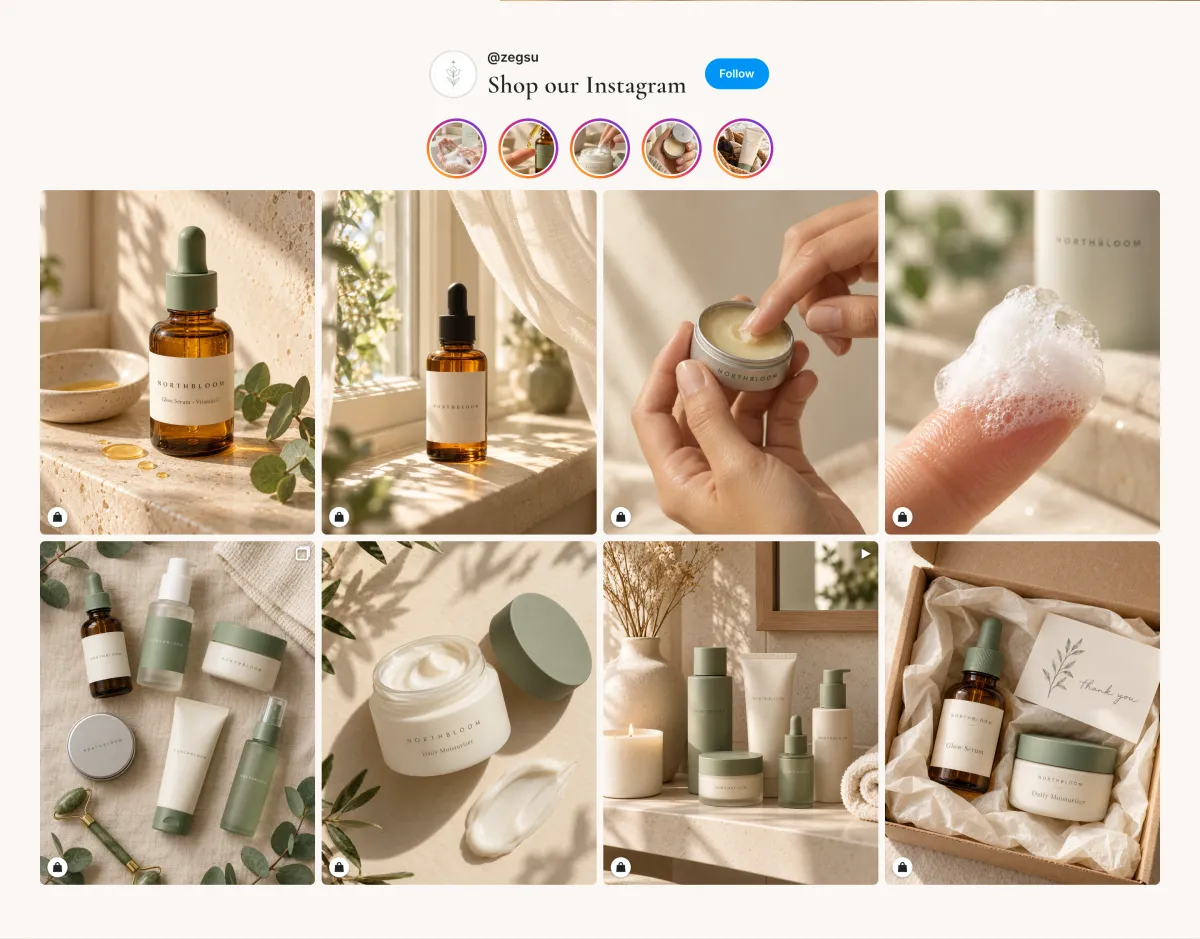
If you'd rather place it yourself: in Shopify go to Online Store > Themes > Customize, open the page, click Add section and pick Instagram feed under Apps. The full steps, with screenshots, are in the help article How do I add the feed to my store?
Make the feed shoppable
A feed of pictures shows your brand. A shoppable feed lets people buy what's in them. To make a post shoppable:
- In the app, open Posts.
- Under a post, click Tag products, tick the products shown in it and click Select.
When a shopper clicks that post on your store, a popup opens with the photo, Reel or carousel, the tagged products with price and variants, and Add to cart. They stay on your page while they shop. Our guide to shoppable Instagram posts on Shopify covers tagging, auto-tagging from captions and product-page feeds in more detail.
Which layout and where to put it
| Layout | What it looks like | Good for | Plan |
|---|---|---|---|
| Grid | Rows of square or portrait tiles; 2–6 columns on desktop, 1–3 on phones | Home page, a dedicated "Shop our Instagram" page | Free |
| Slider | One row that shoppers swipe, with arrows on desktop | Product pages and the bottom of collection pages, where space is tight | Free |
| Collage | Large and small tiles mixed, 10 posts | A home page section that should look editorial | Pro |
| Hero | One large post beside smaller ones, 6 posts | Featuring a new launch or campaign | Pro |
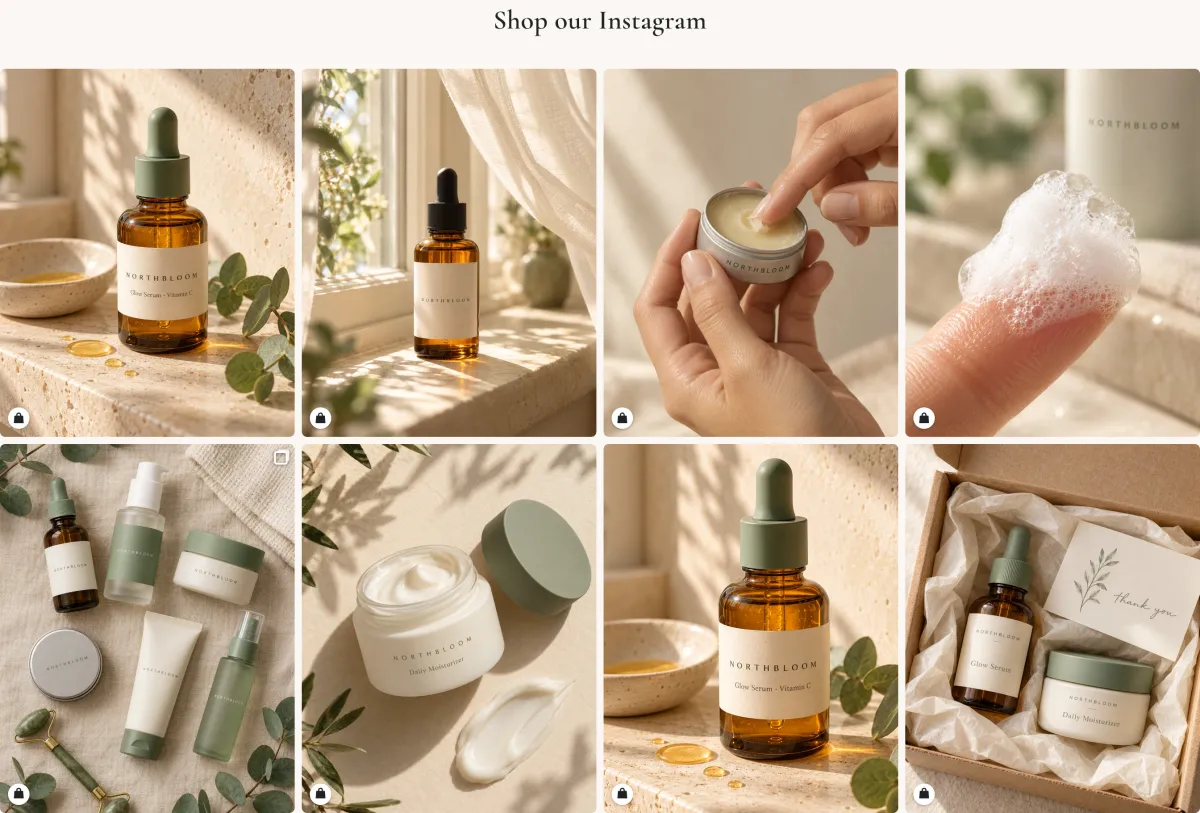
Where it tends to work:
- Home page, below the hero or featured collection. This is where most stores start. One row or two is enough; a long wall of posts pushes your products down.
- Product pages. A slider titled something like "Seen on Instagram" shows the product in real settings. On Pro, each product page can show only the posts tagged with that product, and products with no tagged posts show nothing, so there's no empty block.
- A dedicated page. Some stores add a "Shop the feed" page and link to it from their Instagram bio.
You can run more than one feed, each styled for its page (up to 20 on Pro). The help centre explains how to choose a layout and the column and row settings.
Can you add an Instagram feed to Shopify without an app?
You can embed single posts: Instagram's Embed option gives you code for one post, which you can paste into a Custom Liquid section. That shows one post, loaded from Instagram, and it doesn't update when you post something new.
A feed that updates on its own needs something to fetch your posts from Instagram. Older free scripts and code snippets did this with Instagram's Basic Display API, which Meta shut down on December 4, 2024. Feeds built that way now show errors or nothing. Today an app has to use Instagram's API with an Instagram or Facebook login, which is why feed apps ask for a Business or Creator account.
Does an Instagram feed slow down a Shopify store?
It depends on how the app loads it. If a feed is a script that runs after the page loads and then fetches your posts from the app's servers or from Instagram, that's extra work on every visit, and when either service is slow the feed shows late or blank. Ask any app you're considering where the feed loads from.
Zegsu Instafeed copies your photos and Reels into your store's own Shopify Files and builds the feed into the theme's page, so shoppers' browsers don't call Instagram or our servers to show it. Images come from Shopify's image CDN, sized for each screen, and Reels only download when they scroll into view. If Instagram is down or your account disconnects, the feed keeps showing your last posts, and the app emails you to reconnect. The help article Does my feed keep showing if Instagram is down? explains how this works.
Free or paid?
Zegsu Instafeed's Free plan includes one shoppable feed, the grid and slider layouts, product tags on up to 6 posts, hourly sync and disconnect emails, with no view limits and no watermark. Pro is $5.99 a month or $29.99 a year and adds unlimited tagging, auto-tagging from captions, Stories, Reels that play in the feed, collage and hero layouts, product-page feeds and up to 20 feeds. New stores get Pro free for 7 days, with no card. The plans article lists everything.
When you compare apps, check three things on each listing's pricing: whether product tagging is on the free plan, whether the free plan caps views or visitors, and whether it adds a badge or watermark.
FAQ
Which Instagram accounts can I connect? Business and Creator accounts. Personal accounts can't be connected, because Instagram doesn't let apps read their posts. See which Instagram accounts you can connect.
How often does the feed update? Every hour. You can also click Sync now on Home to pull a new post straight away.
Can I show Reels and Stories? Yes. Reels show in the feed and play in the popup on every plan; on Pro they also play in the feed. On Pro, your live Stories can show as circles above the feed, with products tagged on them.
Can I show other people's posts with my hashtag? Not yet. Hashtag feeds in Zegsu Instafeed show your own posts that use a hashtag. Showing public posts from other accounts needs approval from Meta, which we've applied for.
Will the feed look like my theme? It uses your theme's fonts and colours, and you choose the heading, width, padding, columns, rows and tile shape in the app.
Next steps
Install Zegsu Instafeed free from the Shopify App Store, connect Instagram and add the feed to your home page. If you're also setting up an Instagram Shop, read how to connect Instagram to Shopify: it explains the difference between selling on Instagram and showing Instagram on your store.