
How to connect Instagram to Shopify: the two connections explained
Connecting Instagram to Shopify means two things: selling your products on Instagram, and showing your Instagram posts on your store. How to set up each.
By Zegsu team6 min read
There are two ways to connect Instagram to Shopify, and they do opposite jobs. The Facebook & Instagram sales channel sends your Shopify products to Instagram, so you can tag them in posts and sell from an Instagram Shop. An Instagram feed app brings your Instagram posts to your Shopify store, so shoppers on your site see them and buy from them. Most stores that are active on Instagram end up using both. This guide explains what each one does, what it needs, and how to set it up.
Which connection do you need?
| You want to… | Use | Where it shows | What you need |
|---|---|---|---|
| Tag products in Instagram posts and stories, and sell from your Instagram business profile | Shopify's Facebook & Instagram channel (by Meta) | Inside Instagram | An Instagram professional account linked to your own published Facebook Page, a supported country, products for sale on your own domain |
| Show your Instagram posts, Reels and Stories on your store, with products shoppers can add to cart | An Instagram feed app, such as Zegsu Instafeed | On your Shopify store | An Instagram Business or Creator account and an Online Store 2.0 theme; no Facebook Page needed |
| Both | Both. They don't conflict | Both | Both lists |
The two don't share product tags. Tags you add inside Instagram stay on Instagram, and an Instagram feed app has its own tags for your store. In Zegsu Instafeed, a caption that names one of your products can be tagged on your store automatically, so you don't have to tag everything twice.
Connection 1: sell on Instagram with the Facebook & Instagram channel
Shopify's Facebook and Instagram by Meta channel is free on every Shopify plan. It syncs your products to a Meta catalog that powers your Facebook Shop and Instagram Shopping, and lets you tag products in your Instagram posts and stories.
What you need first
Shopify's requirements page lists Meta's rules. The main ones:
- Your Instagram account is a professional account associated with your Facebook Page.
- Your business has its own published Facebook Page.
- You're located in one of Meta's supported countries for Shops on Facebook and Instagram.
- Your products can be bought directly from your own domain and meet Meta's commerce policies.
Meta also checks that the account has an established, authentic presence, so a brand-new Instagram account can be refused until it has more activity. Shopify's setup troubleshooting lists the messages you might see and what each means.
Set it up
- In your Shopify admin, go to Settings > Sales channels, open the Shopify App Store, search for Facebook and add the Facebook & Instagram channel. Shopify points out it's a sales channel, not an app.
- Click Connect account, sign in to Facebook, and connect the Facebook assets it asks for: your business portfolio and the Facebook Page it owns, which your Instagram professional account is linked to.
- Accept the terms and conditions and click Finish setup. Your products sync to a catalog on Facebook and Instagram, and go through Meta's review.
- Once your Instagram business profile is approved, tag products in your Instagram posts and stories.
Shopify's setup guide has the current wording of each screen.
What happens when someone buys
According to Shopify's Instagram page, Instagram Shopping now sends customers to your Shopify checkout to complete the purchase, instead of Meta handling checkout on Instagram. The order lands in Shopify like any other online order.
Connection 2: show Instagram on your Shopify store
The Facebook & Instagram channel doesn't put anything on your store. To show your posts there, you add an Instagram feed with an app. With Zegsu Instafeed:
- Install Zegsu Instafeed from the Shopify App Store and open it.
- Connect Instagram. On Home, click Connect Instagram and log in with the Instagram account you want to show. It must be a Business or Creator account. If it's linked to a Facebook Page, you can connect through Facebook instead, but you don't have to.
- Choose a look: grid, slider or a Reels row.
- Add it to your store. Click Add to home page, and the theme editor opens with the feed in place. Click Save.
- Tag products on your posts under Posts, so shoppers can add them to cart from a popup on your store.
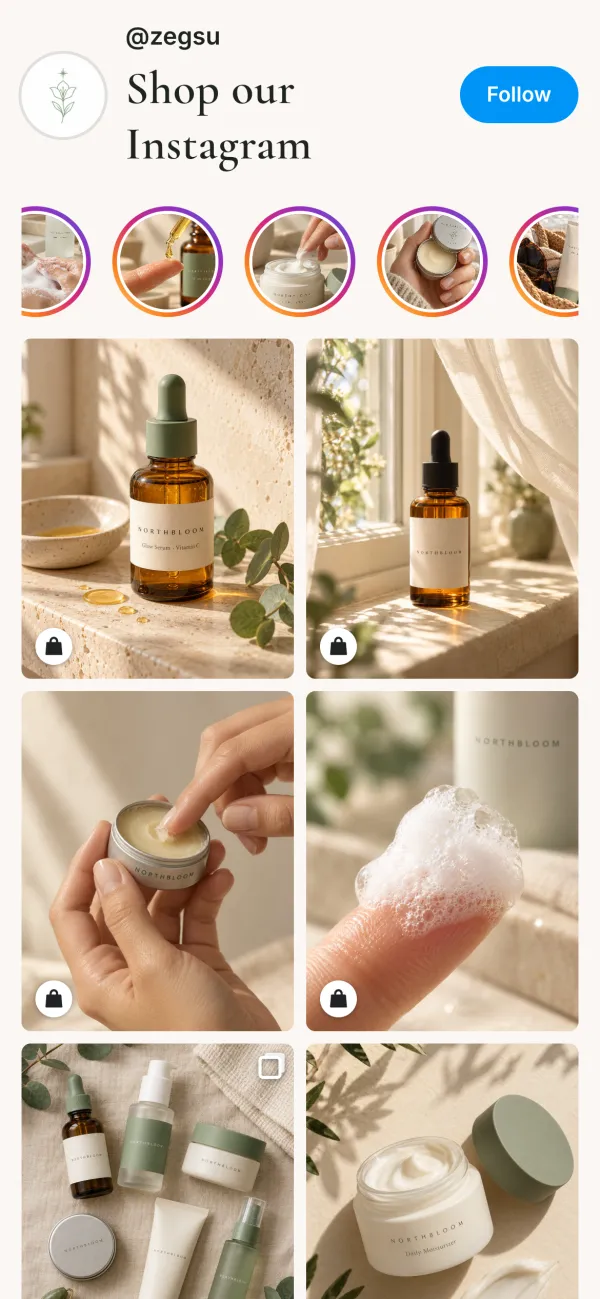
The app only reads your posts. It never posts, comments or sends messages. New posts sync every hour, and you get an email if Instagram ever needs reconnecting. For placement, layouts and the free plan, see our step-by-step guide to adding an Instagram feed to Shopify.
Why use both
They reach different people at different moments:
- On Instagram, product tags catch people while they scroll. Someone who taps a tag can buy through your Shopify checkout.
- On your store, an Instagram feed shows visitors who arrived from Google, ads or email how real customers and your own team use the products. On a product page, it can show only the posts with that product.
The posts are the same; the audience isn't. Posting once and having it work in both places is the point.
Troubleshooting the connection
| Problem | Likely cause | Fix |
|---|---|---|
| The Facebook & Instagram channel says the account isn't eligible | Not a professional account, no linked Facebook Page, an unsupported country, or not enough account history | Check Shopify's requirements and the error in the setup guide |
| The channel says the account is connected to another store | The Page or Instagram account is linked to a different Shopify store | Disconnect it from the other store first |
| A feed app can't connect your Instagram | The account is personal, or access wasn't allowed during login | Switch to Business or Creator in Instagram's settings, then connect again (help article) |
| The wrong Instagram account connects | Instagram logs in with the account already signed in on that browser | Log out of Instagram in that browser, then connect again |
| An old Instagram feed on your store stopped working | It used Instagram's Basic Display API, which Meta shut down on December 4, 2024 | Replace it with an app that uses Instagram's current API |
FAQ
Is connecting Instagram to Shopify free? The Facebook & Instagram channel is free on all Shopify plans. Zegsu Instafeed has a Free plan with one shoppable feed and product tags on up to 6 posts; Pro is $5.99 a month or $29.99 a year.
Do I need a Facebook Page? To sell on Instagram through the Facebook & Instagram channel, yes. To show your Instagram feed on your store with Zegsu Instafeed, no.
Can I connect a personal Instagram account? Neither connection works with a personal account. Switching to a Creator or Business account is free and doesn't change your posts or followers.
Will my Instagram product tags show on my store? No. Tags made in Instagram aren't shared with feed apps, so you tag products again in the feed app. Zegsu Instafeed can tag new posts automatically when the caption names a product (on Pro).
Next steps
If you sell on Instagram, set up the Facebook & Instagram channel using Shopify's guide. To bring the same posts onto your store, install Zegsu Instafeed free and follow our guide to shoppable Instagram posts.