
How to tag products on Instagram from your Shopify store
How to tag Shopify products in Instagram posts and stories with Instagram Shopping, what you need first, and how to tag the same posts on your own store.
By Zegsu team6 min read
To tag products on Instagram from a Shopify store, connect Shopify's free Facebook & Instagram channel so your products sync to a Meta catalog. Once Instagram approves your shop, create a post, tap More options, then Tag products, tap the item in the photo and pick it from your catalog. Those tags work inside Instagram. To make the same posts shoppable on your own store, you tag them again in an Instagram feed app. This guide covers both.
What you need before you can tag products
Instagram's product tags come from Instagram Shopping, so you need a shop that Instagram has approved. For a Shopify store, the route is Shopify's Facebook & Instagram channel. Shopify's help says that once your Instagram business profile is approved and you've added your Meta product catalog, you can tag products in posts and stories.
| You need | Details |
|---|---|
| An Instagram professional account | A Business or Creator account linked to your business's Facebook Page |
| A supported country | Instagram lists the countries where shopping is available |
| The Facebook & Instagram channel in Shopify | It syncs your products to a Meta catalog shared by Facebook and Instagram |
| Products that meet Meta's requirements | Shopify's publishing page lists them: the product needs shipping (so not digital), a return policy, a Google product category, and it can't be free |
| Approval | Meta reviews your account and products against its Commerce Policies |
Our guide to connecting Instagram to Shopify walks through adding the channel and what to do if your account isn't approved.
Make your products available to Instagram
In Shopify, products have to be available to the Facebook & Instagram channel before you can tag them. Shopify's help explains how to make products available from the channel's product list, or from Products with More actions and the option to add available channels. Because Facebook and Instagram share one catalog, a product available to the channel can be tagged on Instagram.
If a product won't sync, the usual causes are a missing image, a missing Google product category or missing variant details such as size and colour. Changes usually show on Meta after a few minutes.
How to tag products in a new Instagram post
These are the steps from Instagram's help page:
- Tap Create and select Post.
- Choose a photo or video, add your caption and any effects, and tap Next.
- Tap More options, then Tag products, and tap the products in the photo or video you want to tag.
- Search for each product and select it as it appears.
- Tap Done, then Share.
The tags appear on the post, and people can tap them to see the product. When someone buys, they check out on your Shopify store; Shopify's help notes that customers tap "Checkout on seller's website".
How many tags: Instagram's help says you can tag up to 20 products and shops in a photo feed post, and a carousel can have 20 tags in total across its photos and videos.
Variants: if a product has several variants in Shopify, you choose one variant for the tag.
Tag products in a post you've already shared
You can add or move tags on existing posts too. Instagram's help page on editing shopping tags gives the steps: open the post, tap Options, then Edit, Add products and Tag products. From there you can drag a tag to a new position, or tap it and tap X to remove it. Removing a tag also removes the shopping insights for it.
Tag products in stories and Reels
- Stories: you add a product sticker. Shopify's help says you can only tag products on image stories, not video stories. To change a product sticker, Instagram says you have to delete the story and post it again.
- Reels: Instagram's help says adding products to a reel applies only to legacy shop catalogs, so many newer shops won't see the option.
Why your product tags don't show on your store
Tags you add in Instagram stay in Instagram. Instagram doesn't share them with apps that show your feed on your Shopify store, so a post tagged in Instagram appears untagged in any feed app until you tag it there too.
That's because the two do different jobs:
| Tags in Instagram | Tags on your store | |
|---|---|---|
| Who sees them | People scrolling Instagram | Visitors on your store, from Google, ads, email or your bio link |
| Where they come from | Your Meta catalog, through Shopify's channel | Your Shopify products, through a feed app |
| What you need | An approved Instagram shop | A feed app and a Business or Creator account; no Facebook Page or approval |
| What a tap does | Shows the product, then checkout on your store | Opens the post with the products, price, options and add to cart |
| Stories and Reels | Image stories only; Reels for legacy catalogs | Depends on the app |
How to tag the same posts on your store
With Zegsu Instafeed, your Instagram posts show on your store as a shoppable feed, and you tag them with your Shopify products. You don't need Instagram Shopping, a Facebook Page or Meta's approval for this.
- Install and connect. Install Zegsu Instafeed from the Shopify App Store and click Connect Instagram with your Business or Creator account.
- Open Posts. Your latest posts, Reels and carousels are listed.
- Tag products. Under a post, click Tag products, tick the products shown in it and click Select. A post can carry as many products as you like, and changes go live on your store straight away.
- Use the suggestions. When a caption names one of your products, the post shows Looks like with that product and a Tag it button.
- Add the feed to your store from Home with Add to home page, then Save in the theme editor.
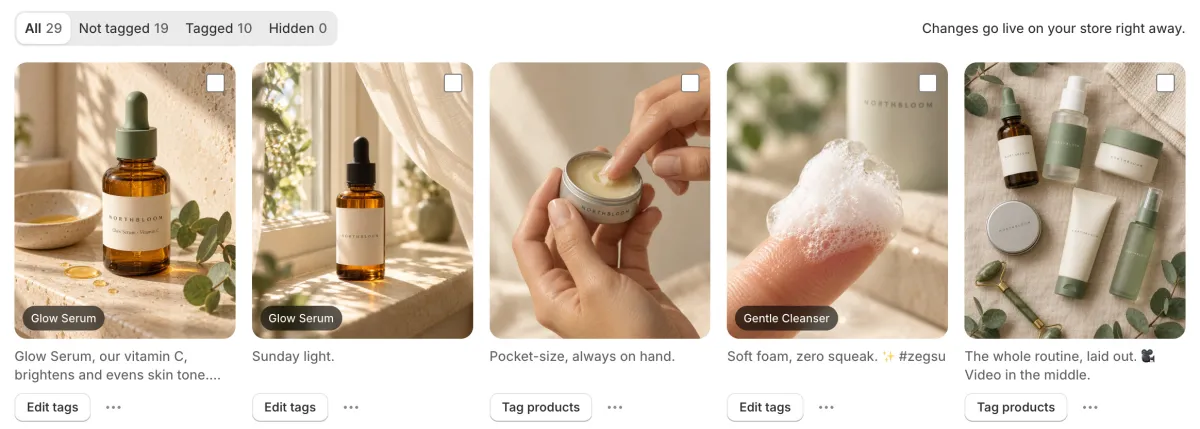
When a shopper clicks a tagged post on your store, a popup shows the photo, Reel or carousel with each product's price, a variant picker and Add to cart, without leaving the page. The help article How do I tag products on a post? has screenshots of each step.
Tag less by hand
If you already name products in your captions for Instagram, you can reuse that:
- Auto-tagging (Pro): turn on Tag products automatically in Settings, and each new post whose caption names one of your products is tagged with it as it syncs. How to tag new posts automatically.
- Tag many at once: in Posts, tick several posts and click Tag products in the bar at the top. How to tag many posts at once.
- Stories (Pro): tag products on your live Stories under Posts > Live stories, and they show above the feed while they're live on Instagram.
The Free plan tags up to 6 posts. Pro is $5.99 a month or $29.99 a year and tags every post. Our guide to shoppable Instagram posts on Shopify has more on layouts and product-page feeds.
FAQ
Can I tag products on Instagram without Shopify's Facebook & Instagram channel? You need products in a Meta catalog and an approved shop. For a Shopify store, the channel is how the catalog stays in sync with your products and prices.
Why can't I see Tag products when I post? Usually your shop isn't approved yet, the product isn't available to the Facebook & Instagram channel, or it doesn't meet Meta's requirements. Check the channel in Shopify for review or sync errors.
Can I tag products on a personal Instagram account? Instagram's help says qualified public accounts can tag products from brands with shops on Instagram, and businesses can approve partners to tag theirs. To sell your own products with tags, you need your own approved shop.
Do I have to tag posts twice to sell on Instagram and on my store? Yes, the tags don't cross over. In Zegsu Instafeed, auto-tagging from captions (Pro) means you usually only write the product name once, in the caption.