
Shoppable video on Shopify: how to turn Instagram Reels into sales
What shoppable video is, where it works on a Shopify store, and how to make your Instagram Reels shoppable on your own site, with tips on speed and setup.
By Zegsu team6 min read
Shoppable video is a video with the products in it linked, so a viewer can see the price and buy without searching for the product. On a Shopify store, that usually means short videos on your home or product pages: a shopper taps a video, sees the products it shows, and adds them to cart. If you already post Instagram Reels, you have the videos. This guide explains the options and how to make your Reels shoppable on your own store.
Where shoppable video can live
| Where | What it is | What you need |
|---|---|---|
| Inside Instagram | Reels and posts with Instagram's own product tags | An approved Instagram shop; Instagram says adding products to Reels applies only to legacy shop catalogs |
| On other social apps | Product links in videos on other social platforms | Each platform's own shop program |
| On your Shopify store | Videos on your pages, each linked to your Shopify products | An app that shows videos and tags products |
This guide is about the last row: video on your own store, where shoppers already are and where every sale goes through your own checkout. For tagging inside Instagram, see how to tag products on Instagram.
What a shoppable video looks like on a store
Most shoppable video on Shopify stores takes one of these forms:
- A row or slider of short videos on the home page, in the tall 9:16 shape of Reels and other short videos. Shoppers swipe through and tap one to shop.
- Videos on product pages that show the product being used, often only the videos featuring that product.
- Story-style circles above a section, which open full screen when tapped.
- A popup that opens when a video is tapped, showing the video next to its products with price, options and add to cart.
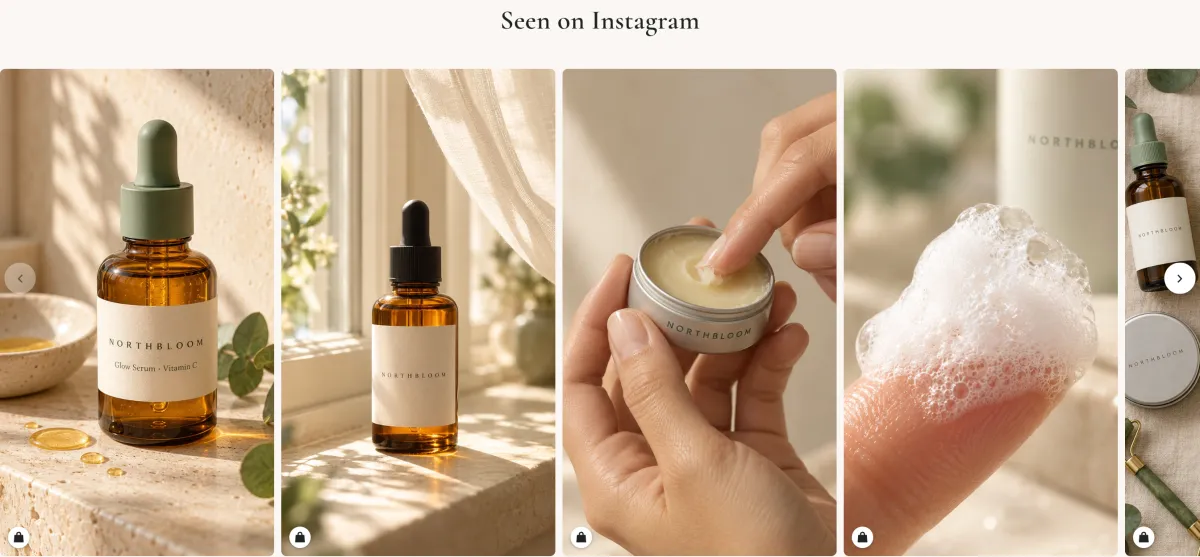
Shopify's own themes let you add a video to a page or to a product's media, but those videos don't link to products. Making a video shoppable takes an app.
Two ways to get shoppable video on Shopify
Turn your Instagram Reels into shoppable video. An Instagram feed app brings your Reels to your store, keeps them up to date as you post, and lets you tag products on each one. It suits brands that already post Reels regularly, because there's nothing extra to film or upload.
Use a dedicated shoppable video app. These apps let you upload your own videos and, depending on the app, pull in TikTok or customer videos too. They suit brands that make video specifically for their site or sell across several social platforms. Our comparison of Shopify Instagram feed apps notes which feed apps also handle TikTok or uploads.
How to make your Instagram Reels shoppable on your store
These steps use Zegsu Instafeed:
- Install and connect. Install Zegsu Instafeed from the Shopify App Store, click Connect Instagram and log in with your Business or Creator account. Your latest posts and Reels come in.
- Choose a Reels-friendly look. Under Choose a look, pick Reels row or Slider, and set the tile shape to portrait so the videos keep their shape.
- Tag products on your Reels. Open Posts, click Tag products under a Reel, tick the products in it and click Select. When a caption names one of your products, the post suggests it with a Tag it button.
- Add it to your store. Click Add to home page (or choose product pages under Where it shows) and click Save in the theme editor.
- Play Reels in the feed (Pro). In Feeds, under Layout, turn on Play Reels in the feed. How to play Reels in the feed.
When a shopper taps a Reel, a popup plays it (muted, with controls) next to the tagged products, with price, a variant picker and Add to cart, and they stay on your page.
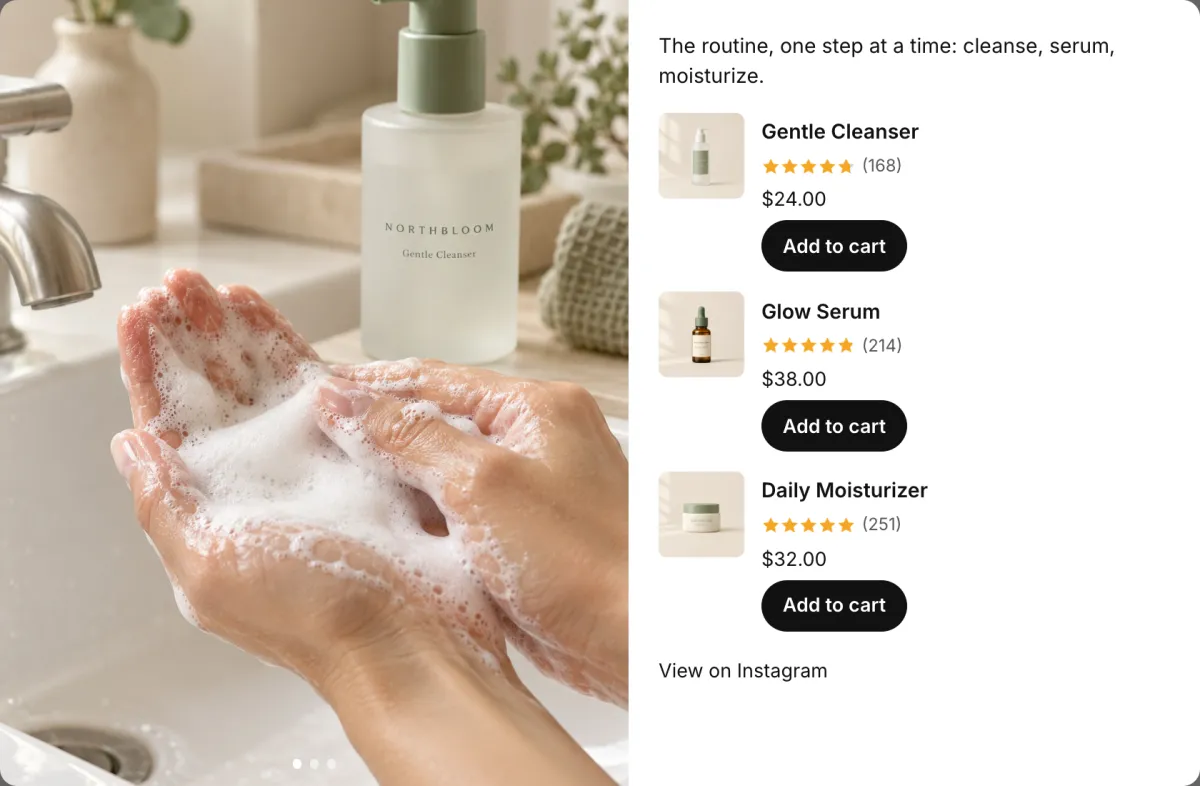
On product pages, Pro can show only the Reels and posts tagged with that product, so each page shows the videos that feature it.
Keep video from slowing your store down
Video is heavy, so how an app loads it matters:
- Load video only when it's on screen. A video that downloads before the shopper scrolls to it adds weight to every visit.
- Play muted, and pause off screen. Autoplay with sound is blocked by most browsers anyway, and playing videos nobody sees wastes data.
- Respect phone settings. Shoppers who turn on reduce motion or data saver shouldn't get autoplaying video.
- Ask where the video comes from. If videos stream from the app's servers or from Instagram on every visit, they depend on those services being up.
Zegsu Instafeed copies your newest 24 Reels into your store's own Shopify Files, so they load from Shopify rather than from Instagram or our servers. A Reel only downloads when it first comes into view, plays muted while it's on screen and pauses when the shopper scrolls away. It doesn't autoplay for shoppers with reduce motion or data saver on; they see the cover picture and can still play it in the popup.
When a Reel won't play
A few things stop a Reel from playing on a store, whichever app you use:
- Licensed music. Instagram often holds back the video file for Reels that use licensed music, so apps can only show the cover. Use original audio for Reels you want to sell from.
- Very large videos. Zegsu Instafeed doesn't copy Reels over 200 MB; they show their cover.
- Brand-new Reels. In Zegsu Instafeed, up to 3 new Reels are copied per hourly sync. Click Sync now to fetch them sooner.
Why a Reel shows a picture instead of playing covers each case.
Tips for Reels that sell
- Show the product in the first seconds. In a row of muted videos, the first frame does the selling.
- Name the product in the caption the way it's named in Shopify, so it can be tagged automatically and shoppers know what they're seeing.
- Tag every Reel you show. An untagged video is entertainment, not a shop.
- Put product Reels on product pages. A Reel of the product in use answers questions a still photo can't.
- Check it on your phone. Tap through a Reel and add to cart as a shopper would.
What it costs
Zegsu Instafeed's Free plan shows Reels in your feed and plays them in the popup, with product tags on up to 6 posts. Pro is $5.99 a month or $29.99 a year and adds Reels playing in the feed, unlimited tagging, auto-tagging from captions, product-page feeds and Stories. New stores get 7 days of Pro free. See what each plan includes.
FAQ
Is shoppable video the same as a shoppable Instagram feed? They overlap. A shoppable Instagram feed on your store can include Reels, which makes those Reels shoppable video. A shoppable gallery is the broader term for any set of photos and videos linked to products.
Can I use TikTok videos? Not with Zegsu Instafeed, which shows your Instagram content. Some other apps support TikTok; check each app's listing.
Do shoppable videos work on phones? Yes. On phones the popup fills the screen, and videos play muted with controls.
Do Reels with music play on my store? Reels with original audio do. Instagram often doesn't provide the video for Reels with licensed music, so those show their cover picture.